



Sharing calendars with another person
If you would like to coordinate your events with another person, you can use Google Calendar's sharing function. This way it is possible to share some or all of your calendars with someone else: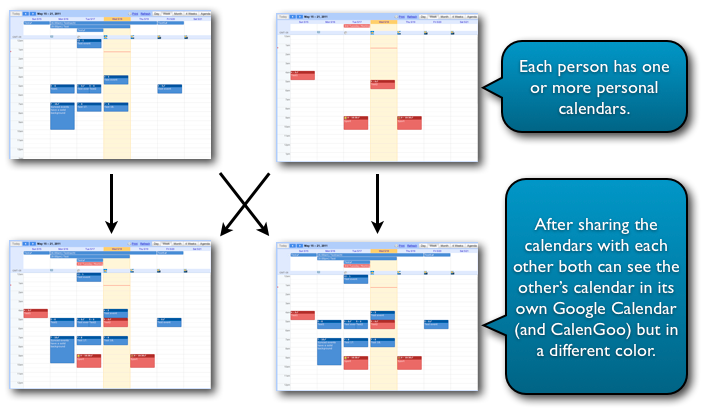
Please follow these instructions to share your calendar with someone else (and vice-versa) and see the other person's events in your calendar in another color:
Person 1
Step 1: Create a Google Calendar account.
Skip this step if you already have a Google Calendar account.To get a Google Calendar account, please go to
http://calendar.google.com
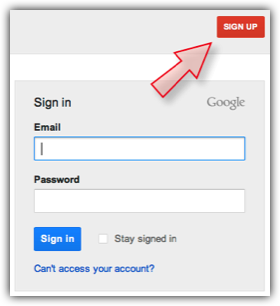
and click "Sign up for a new Google Account". Then follow the instructions.
Person 2
Step 1: Create a Google Calendar account.
Skip this step if you already have a Google Calendar account.To get a Google Calendar account, please go to
http://calendar.google.com
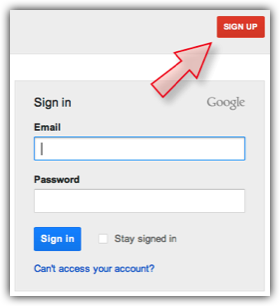
and click "Sign up for a new Google Account". Then follow the instructions.
Now both persons have a Google Calendar account. You can sign in to it on http://calendar.google.com from any Internet-connected computer.
Person 1
Optional Step 2: Add additional calendars
If you don't want to share all events or if you want to categorize your events into different categories with different colors, you can add additional calendars by clicking "Add" under "My calendars" on the left: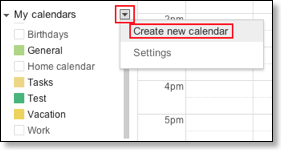
Step 3: Sharing your calendar(s)
You can now make some or all of your calendars visible for the other person: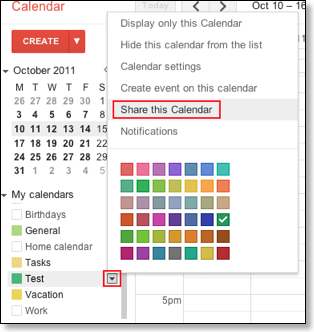
Person 2
Optional Step 2: Add additional calendars
If you don't want to share all events or if you want to categorize your events into different categories with different colors, you can add additional calendars by clicking "Add" under "My calendars" on the left:Step 3: Sharing your calendar(s)
You can now make some or all of your calendars visible for the other person:Now you have to enter the name of the other person to share it with him/her and choose the permissions:

Finished
That's all. Afterward you should see the other's calendar and events in a different color in your own calendar in the "Other calendars" list (below "My calendars"). There you can also choose a color for this calendar by clicking the button with the triangle to the right of the calendar's name. So you don't have to use the same color that the other person uses for his/her calendar.By clicking a calendar's name under "My calendars" or "Other calendars", you can toggle it between "visible" and "invisible" e.g. if you don't want to see the other's calendar all the time. This visibility setting is also used/downloaded by CalenGoo during the sync, please see Visibility/Download.
Using CalenGoo
When using CalenGoo using the direct sync method, it will automatically detect and use all your personal and shared calendars (except Google Sports calendars) the next time you sync with the "Sync" menu entry. And it will use the colors you have configured in Google Calendar, so there is nothing special necessary to use these shared calendars with CalenGoo.If you are syncing via Android, please tap "Settings", "Visibility/Download" in CalenGoo, press the menu button and choose "Refresh Android Calendars" to let Android recognize the new shared calendars. Afterward you should see them in the calendar view and under "Settings", "Visibility/Download".
Same account
Instead of using shared calendars, you could just sync all devices with the same Google Calendar account. Then they will certainly also use the same reminders.
Change notifications
You can configure Google Calendar to send you an email whenever something changes in one of your shared calendars. Please see Change notifications
Default reminders
You can configure default reminders in Google Calendar that are used for all events in that calendar. Please see the Google Calendar help for details.
And in CalenGoo you can use "Automatic reminders", which are also used for all events of a calendar. Please see "Automatic reminders" here: Reminders
And in CalenGoo you can use "Automatic reminders", which are also used for all events of a calendar. Please see "Automatic reminders" here: Reminders
Sharing calendars with different permissions
When sharing a calendar as explained above you can choose under "Permission Settings" which permissions the receiver will have: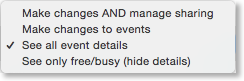
You can find further information about the permissions under "Control what others can see" here: https://support.google.com/calendar/answer/37082
Each event can be individually marked as "Default", "Public" or "Private" in CalenGoo and Google Calendar:
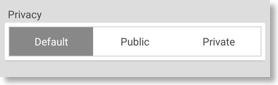
The sharing permissions also determine if the receiver can see the details of your events:
| Default | Public | Private | |
|---|---|---|---|
| Make changes | Can see all details | Can see all details | Can see all details |
| See all event details | Can see all details | Can see all details | Sees only free/busy |
| See only free/busy | Sees only free/busy | Can see all details | Sees only free/busy |
You can find further information under "I've only shared my calendar with specific people" here: https://support.google.com/calendar/answer/34580