



Using icons in events
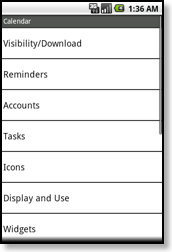
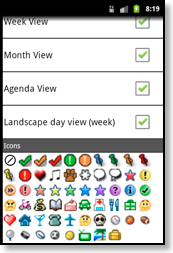
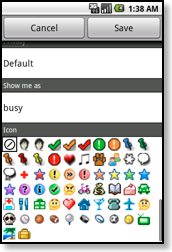
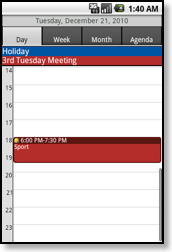
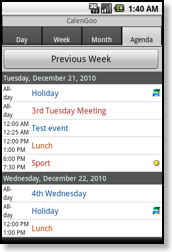
Google Calendar can save an icon into each event. In the past the Google Calendar website could also display these icons but now it cannot do that any more. However in CalenGoo (for Android, iOS, Windows and macOS) you can still use icons for events in calendars that are directly synced with Google Calendar. Calendars that are synced via Android cannot contain icons. So the icon section in the edit view will only appear if a directly synced calendar is selected for this event. To sync directly with Google Calendar you have to add your Google Calendar account under “Menu”, “Settings > Accounts” in CalenGoo. To prevent getting duplicates, you should disable your Android account under “Menu”, “Settings > Accounts” afterward. And you should set another default calendar under “Menu”, “Settings > Default calendar”.Then you can simply start using icons: Tap “Menu”, “Settings > Icons” and then tap “Download all Google icons” to download some icons. These icons will be available afterward when you create new events for one of the calendars that are directly synced with Google Calendar.
Downloading additional icons
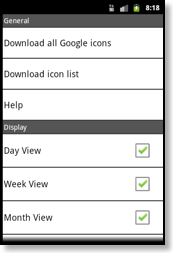
If you would like to download additional icons, please tap “Settings”, “Icons”, “Download icon list” and enter “http://www.calengoo.com/icons/icons.txt” to download 100 additional icons from www.famfamfam.com and "http://www.calengoo.com/icons/iconse1.txt" to download 1833 icons provided free by Emoji One. Please note that you can use icons only in directly synced Google Calendars.Adding own icons
Starting with version 1.0.174 CalenGoo has a function that makes it easy to add your own icons:- Create a folder named "calengooicons" in your Google Drive and copy all your icons as PNG files into that folder.
- Open "Settings > Icons > Download icons from Google Drive" in CalenGoo. It will download all icons from that folder and it will also make them public so that Google Calendar can access them, too.
Previously it was necessary to create a text file with links to each icon, put it on a web server and enter the URL under "Settings > Icons > Download own icon list".
Setting and removing default calendar icons
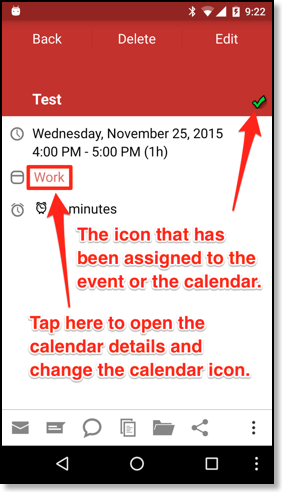
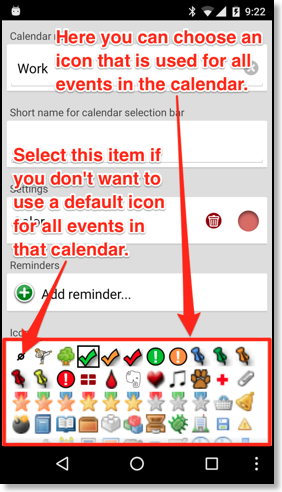
It is possible to set a default icon for all events in a calendar. You can do that by clicking the blue button at the end of the line under "Settings > Visibility/Download" or by tapping the calendar's name in the event's detail view. Then you can choose an icon for the calendar or you can remove the icon by selecting the first item in the list: