



Pop-up reminder problems
If you have problems with the pop-up reminders, i.e. that they don’t appear at all or not all the time, please do the following:- Ensure that “Settings”, “Reminders”, “Activate reminders” and “Reminders for Android calendars” is turned on in CalenGoo. “Reminders for Android calendars” is necessary if you would like to get reminders for events that are synced via Android (instead of directly with Google, please see here for differences: Accounts).
- Tap “Upcoming reminders” (above the “Test” button) and check if your pop-up reminders are displayed. There you can see scheduled future reminders and also past reminders. Additionally it shows which past reminders were displayed (lines with a small clock symbol).
If your events are not listed under "Upcoming reminders" then open the events in CalenGoo and check if they contain any "pop-up" reminders at all. CalenGoo displays only "pop-up" reminders itself, so you have to add "pop-up" reminders to your events to get a notification for the event. - Check if the time of the “Next scheduled reminder” is correct under “Settings”, “Reminders”, “Information” (at the end of the list). It should display the next scheduled reminder, i.e. the next occurring “pop-up” reminder that you have added to your events (please see above how to add “pop-up” reminders to your events).
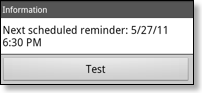
- Tap the “Test” button under “Settings”, “Reminders”, “Information” to see if a reminder can be correctly displayed by CalenGoo.
- Check the output under “Settings”, “Information”, “Log”. It should contain entries like “Schedule reminder wakeup on...”, “Notification”, “Reminder wakeup” that should indicate if CalenGoo tried to display a reminder.
- If you have a Sony device, please ensure that either the "Stamina mode" is turned off or that CalenGoo was added as an exception (in the "Settings" app under "Power management", "Stamina mode", "+ Add applications". Otherwise CalenGoo will be stopped when the screen is turned off and cannot display any reminders.
- If you have a MIUI device, you seem to have to install an "Alarm time fix" for your device to make it wake up CalenGoo properly to display the reminders: http://xiaomi.eu/community/threads/task-apps-do-not-trigger-reminders.22468/
- If you have a Huawei device, you probably have to add CalenGoo to the "Protected applications" section in the "Settings" app. Otherwise it is killed when the screen is turned off and cannot display reminders reliably. If it still doesn’t work correctly afterward, try to turn "Settings > Reminders > Show pop-up window" off in CalenGoo so that CalenGoo uses status bar notifications to display your reminders. On some Huawei devices it seems that the pop-up is somehow blocked but the status bar notifications work.
- Another option on Huawei devices is in the "Settings" app under "Apps & Notifications > Apps > CalenGoo > App Info". There you can change "Manage automatically" to "Manage manually" and turn all three switches on.
- If the above options don’t work, and the "Upcoming reminders" list often shows "Wakeup occurred too late" then it means that your device is still not waking CalenGoo correctly. To fix it you can try to set "Settings > Reminders > Method to wake the device using the AlarmManager" to "alarm clock". Afterward a small clock icon should appear at the top of the screen.
- if you use battery manager apps like Greenify you have to exclude CalenGoo from that app, otherwise the reminders won’t work. From the description of the Greenify app: "NEVER greenify alarm clock apps, instant messaging apps unless you don't rely on them. Please do verify the impact of greenified apps on which you heavily rely.".
- If you have a Samsung S7 or Samsung S7 Edge and the reminders repeat but the repeat options are not turned on in CalenGoo, then you have probably turned on the Android system’s repeat option. Just start the "Settings" app, open "Accessibility > Notification reminder" and turn the switch off (please see here).
- if you have a Samsung device with Android 5 or 6 and your reminders are sometimes delayed by 1-3 minutes, then the reason is a bug in the Samsung Android system that is documented here. To fix it you have to set "Settings > Reminders > Method to wake the device using the AlarmManager" to "exact time" and install this additional app: CalenGoo AlarmManager Helper (for CalenGoo versions older than 1.0.180 please use this: CalenGoo AlarmManager Helper). As explained on the linked website it contains a small app that contains the word "alarm" in its package name, which causes Samsung’s Android system to wake it at the correct time (instead of up to three minutes too late). This small app will then wake CalenGoo so that CalenGoo can display the reminder at the correct time instead of with a small delay.
- If you have a Samsung S8 or newer CalenGoo must not be in the "Always Sleeping Apps" list in the "Settings" app in the "Device Maintenance" section. If it is there you have to remove it from that list to get reminders.
- If you have a Samsung S8 or another Samsung phone with Android 8 you have to add CalenGoo to the "unmonitored apps" list in the "Settings" app under "Device Maintenance > Battery > Unmonitored apps".
- If you have a Samsung S8 or another Samsung phone with Android 9 then start the "Settings" app, open "App > CalenGoo > Battery" and turn "Allow Background Activity" on.
- If you have an Oppo phone you might need to follow the steps here: How To Fix Broken Push Notifications On Oppo Phones
- Or if you have an Oppo device you can try this:
- Set "Settings > Reminders > Method to wake up the device using the Alarm Manager" in CalenGoo to "Alarm", ("Automatic" might also work).
- Start the "Settings" app (here on a OPPO Reno2 Z (Android 10 - ColorOS 7.1))
- Background execution:
- Option 1:
- Settings > App management > App list > Choose the APK in question > Battery usage, check "Run in background".
- Option 2:
- Settings > App management > App list > Choose the APK in question > Data usage details, check "Background data usage".
- Auto-start:
- Settings > App management > Auto-start apps > Choose the APK in question, and enable the app.
- On some Samsung devices it seems to be necessary to turn "Settings > Display and Use > Maintenance > Show running background service in status bar" on to prevent CalenGoo from being removed from memory and not being started again by the AlarmManager.
- On Xiaomi devices with Android 8 or later the sound for reminders has to be enabled in two separate screens: Once in the "Settings" app under "Installed Apps > CalenGoo > Notifications" and once in CalenGoo under "Settings > Reminders > Notification Settings". On other devices both show the same screen but on Xiaomi devices there seem to be two separate screens.
- On OnePlus devices you have to turn the Extended Battery Optimization off for CalenGoo. That setting seems to cause apps to not be started in the background.
- Android 8 and later have more battery saving restrictions. E.g. according to Google’s documentation alarms can be delayed by up to 9 minutes (https://developer.android.com/topic/performance/power/power-details) in doze mode. This seems to contradict the documentation for setAlarmClock and setExactAndAllowWhileIdle where it says "these alarms will be allowed to trigger even if the system is in a low-power idle (a.k.a. doze) mode.". CalenGoo uses setExactAndAllowWhileIdle by default. If that doesn’t work you can try to set "Settings > Reminders > Method to wake the device using the AlarmManager" to "alarm clock". If that also doesn’t work you should exclude CalenGoo from the "battery optimization" and "doze mode" in the "Settings" app as explained above.
Further solutions can be found on the website dontkillmyapp.com .
If your CalenGoo reminders work now but you get all reminders twice because you get a reminder from CalenGoo and another from the stock calendar app, you can disable the reminders of the stock calendar app as described here: Disable stock calendar reminders
If the insist option doesn’t work, i.e. the sound stops by itself, please try to Disable stock calendar reminders, too.
No sound
And if you get the reminders displayed but no sound is played, please ensure that the volume for “Notification” sounds is loud enough. You can configure it in the “Settings” app under “Sound”, “Volume”: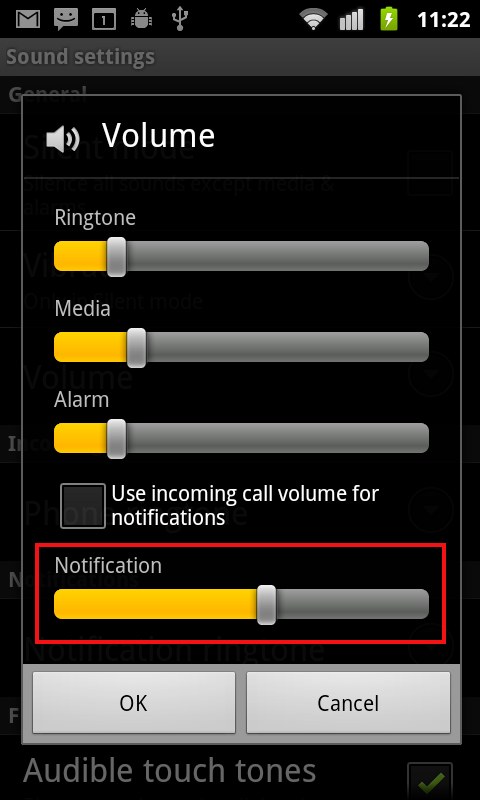
If your phone does not have a slider for the volume of notifications you can use a separate app to change the volume, e.g. something like "Volume Controls".
Pop-up options to wake the screen
If you use CalenGoo’s pop-up reminder window, you can configure it to turn the screen of your phone on when a reminder is displayed. Just turn- "Settings", "Reminders", "Show pop-up window" on to get the pop-up window.
- "Display multiple events in pop-up window" to get the new pop-up window that supports turning the screen on
- "Wake screen" to turn the screen on when a reminder is displayed
- "Unlock screen" to unlock your phone automatically so that you can see the reminder screen even if you use a lock screen
- "Unlock secure lock screens" to display the reminder screen even if you use a lock screen that requires a PIN or another security feature (this might not work on all devices)